VetPACS · Agent
The VetPACS Agent
Automatic, continuous backup of your imaging studies to the cloud.
Install in 5 easy steps
Windows 10 or newer | 64-bit | Automatic installation
Click the Start menu, type powershell, then right-click "Windows PowerShell" and select "Run as administrator"

A Windows security prompt will appear asking for permission
Right-click in the PowerShell window to paste, then press Enter
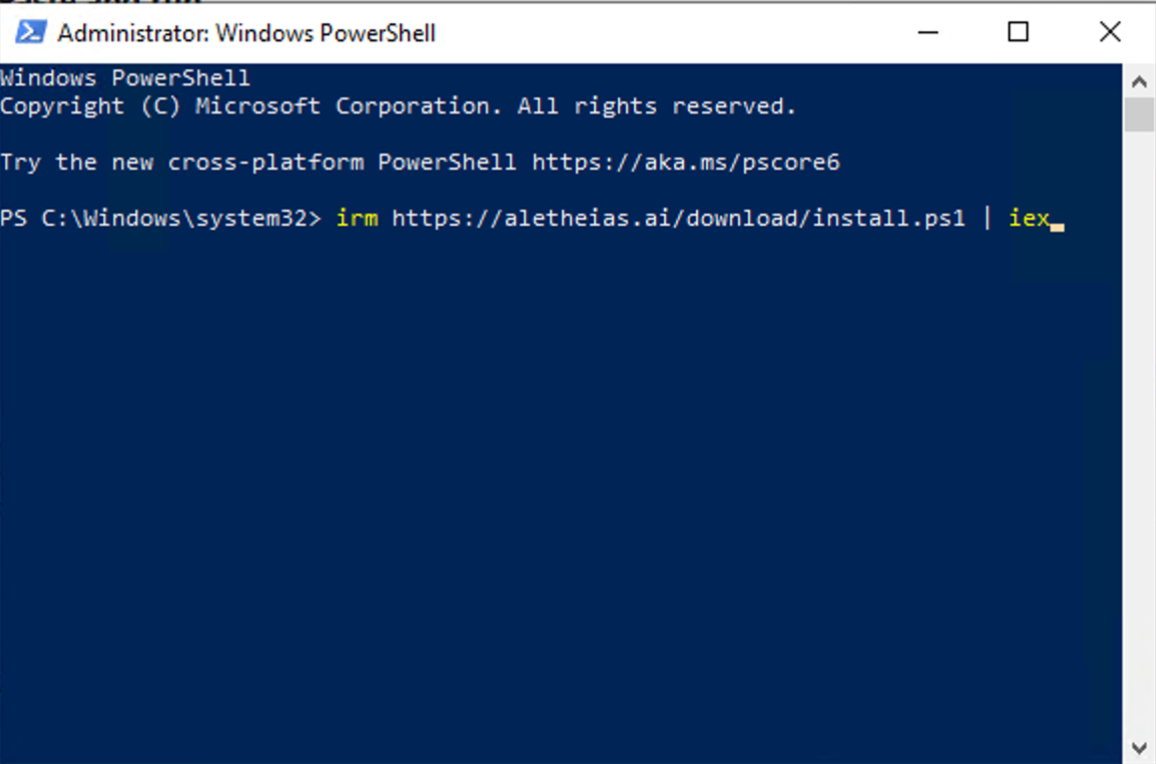
When you see "Installation completed successfully", close the PowerShell window. The agent is now running.
How it works
The VetPACS Agent is a lightweight Windows service that runs in the background:
Auto-Registration
Automatically registers with VetPACS using your clinic's whitelisted IP address. No credentials to manage.
Real-Time Sync
Polls your PACS every 30 seconds for new studies and immediately backs them up to VetPACS.
Background Service
Runs as a Windows service that starts automatically when your computer boots. No user interaction needed.
Auto-Updates
Automatically downloads and installs updates to ensure you always have the latest features and fixes.
Watchdog Service
Monitors the agent to ensure it's always running and up to date. Automatically restarts if needed.
Requirements
- Windows 10 or newer (64-bit)
- Must be installed on the same machine as your PACS
- Internet connection
- Your clinic's IP address must be registered with VetPACS
What gets backed up
The agent backs up all DICOM studies from your PACS to VetPACS, including:
- X-rays and radiographs
- CT scans
- MRI images
- Ultrasound studies
- All associated DICOM metadata
Your data, your control: Studies are stored as a secure, encrypted cloud copy. See the full Privacy Policy for details.
Troubleshooting
Agent shows "Registration Failed"
- Your IP address may not be registered with VetPACS
- Contact support with your public IP address (shown in the error message)
Agent shows "PACS Not Found"
- Ensure your PACS software is running
- Verify the agent is installed on the same machine as your PACS
- Check that your PACS is listening on port 104 or 11112
Studies not appearing in VetPACS
- Check the agent is running in Windows Services (look for "VetPACS Agent")
- View logs at
C:\ProgramData\VetPACS\logs\ - Ensure your internet connection is working
Frequently asked questions
Need help?
Contact VetPACS support:
- Email: support@vetware.io
- Include your clinic name and public IP address
- Attach log files from
C:\ProgramData\VetPACS\logs\